
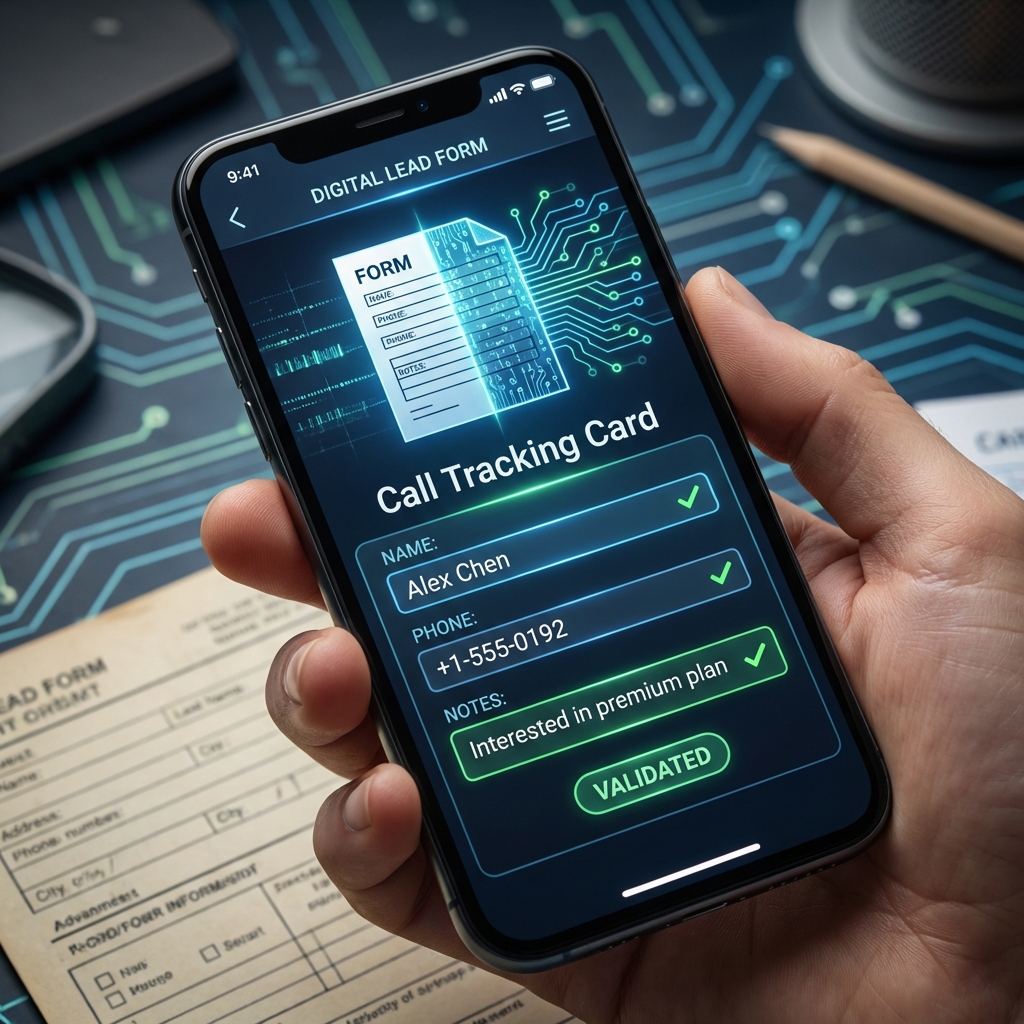
To ensure you never miss crucial information during a client exchange, you can use the Call Notes feature of MemoCallPro.
Unlike standard apps, MemoCallPro displays your notes even before you pick up to give you immediate context.
Why use call notes?
With MemoCallPro, you can:
- Consult your latest client note in a floating window during an incoming call.
- Add or edit notes in one click during or after the conversation.
- Transform a call note into an appointment in your integrated agenda.
- Manage a client database independent of your personal contacts.
Guaranteed Privacy: The content of your calls and notes remains private. Your data is stored on your device and is never handled by third-party servers.
Check your device compatibility
MemoCallPro is designed to work on a wide range of devices, unlike solutions limited to certain models.
- Compatible Devices: Any smartphone running Android 10 and above.
- Availability: Worldwide (multilingual app).
- Supported Languages: French, English (and others depending on your region).
- Required Permissions: Display over other apps (for the overlay) and access to call log.
Start using Call Notes
To activate smart tracking of your calls:
- Open the MemoCallPro app.
- Ensure you granted the “Display over other apps” permission during onboarding.
- Tap the Settings icon.
- Enable the Floating Window (Overlay) option.
From now on, for every call, a button or window will automatically appear with your contact’s information.
Create a note during or after a call
- During the call: the floating window appears. Tap the Note field to enter important details (quote, specific request, reminder).
- Once the call is finished: the summary screen allows you to validate the note or classify the call with Tags.
Automatically save notes
In settings, enable “Automatically take notes” to create an empty entry for every new incoming call, preventing you from forgetting to document the exchange later.
Access call notes on desktop
MemoCallPro allows you to drive your activity on a big screen thanks to the browser interface.
- Connect your phone and computer to the same WIFI network or Hotspot.
- Open your web browser (Chrome, Safari, Firefox).
- Enter the IP address displayed in the Advanced Functions of the mobile app.
- Consult your history, type your notes comfortably on the keyboard, and organize your agenda on PC.
Call Notes Troubleshooting
The floating window (overlay) does not appear
If you receive a call but no note appears:
- Check permissions: Go to your phone settings > Apps > MemoCallPro > Display over other apps (ensure it is “Allowed”).
- Battery and power saving: Ensure MemoCallPro is not “optimized” by the Android system, which could close the service in the background.
- Restart: Completely close the app and relaunch it.
Notes do not sync on the computer
- Check that both devices (Mobile and PC) are on the same network.
- Ensure the IP address entered in the browser is exactly the one indicated on the phone (including the port, e.g.,
:8080). - Temporarily disable your firewall if the connection is blocked.
How custom fields work
MemoCallPro offers total flexibility for your client follow-up. You can add as many fields as necessary (Metadata):
- Technical IDs: VIN number, device model.
- Preferences: VIP Client, priority follow-up.
Limits: You can manage up to 25,000 contacts with unlimited fields without slowing down the application.